Key takeaways
- Find the best budget pen display for digital art in 2026. Compare five affordable drawing monitors for beginners, students, and illustrators.
As an Amazon Associate, we earn from qualifying purchases.
Table of Contents
- The Short Answer
- How to Choose a Budget Pen Display
- 1. Huion Kamvas 13 (Gen 3)
- 2. XPPen Artist 12 3rd Gen
- 3. XP-Pen Artist 12 2nd Gen
- 4. XP-Pen Artist 13.3 Pro
- 5. Huion Kamvas Pro 16
- Budget Pen Displays Compared
- Frequently Asked Questions
- Conclusion
- Product and ASIN Reference
The Short Answer
The best budget pen display for most digital artists in 2026 is the Huion Kamvas 13 (Gen 3). It pairs a 13.3-inch full-laminated screen with a 16,384-level pen, dual dials, and wide color coverage in a slim, portable body. If you want the smallest and most portable option, the XPPen Artist 12 3rd Gen is the newest compact pick, while the XP-Pen Artist 12 2nd Gen remains the most affordable way into drawing directly on a screen. Artists who want a larger canvas should look at the XP-Pen Artist 13.3 Pro or the Huion Kamvas Pro 16.
A pen display differs from a screenless tablet: you draw directly on the screen, so your hand and your line stay in the same place. That makes sketching, inking, and painting feel more natural, and it helps with photo editing and animation. Budget models have improved a great deal: features once limited to expensive professional models are now standard. The five models here all connect to a computer and work with popular creative software.
How to Choose a Budget Pen Display
Start with screen size. An 11.9-inch display is easy to carry and fits on a crowded desk, and it is enough for sketching, comics, and study notes. A 13.3-inch display gives you more room for tool panels beside your canvas, which matters in painting and illustration software. A 15.6-inch display suits detailed work over long sessions, though it needs more desk space.
Look at the pen next. Pressure levels describe how many steps of pressure the pen can sense. Displays with 8,192 levels already offer smooth control for most artists, while newer pens with 16,384 levels add finer steps at the lightest end of the range, where delicate hatching and soft shading live. Tilt support lets you angle the pen like a real pencil.
Color coverage matters when your work will be printed or published online: a display that covers a wide portion of the sRGB color space shows colors close to what most screens and printers reproduce. Anti-glare etched glass reduces reflections, and full lamination cuts the gap that causes parallax, the small offset between the pen tip and the cursor.
Shortcut keys and dials save time: buttons can be set to undo, brush size, and zoom, and a dial rotates the canvas or changes brush size with a twist. Check the connection before you buy: most budget displays connect with a three-in-one cable or a single USB-C cable, and some computers need an adapter. All five displays here work with Windows and macOS, and several also support Android and Linux.
1. Huion Kamvas 13 (Gen 3)
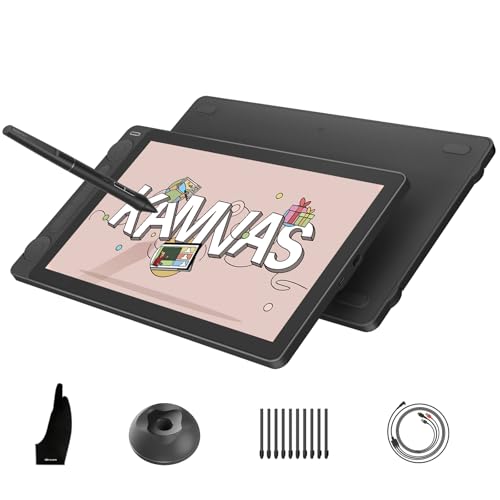
The Huion Kamvas 13 (Gen 3) is the strongest all-round pick in this guide. Its 13.3-inch screen fits illustration work with tool panels open, yet the display stays slim and light enough to carry in a laptop bag. Canvas Glass 2.0 with nano-etching cuts glare and gives the surface a paper-like feel.
The PenTech 4.0 pen offers 16,384 levels of pressure sensitivity with a low initial activation force, so light strokes register cleanly and shading builds up gradually. Tilt auto-alignment keeps the cursor close to the pen tip when you angle the pen. Two dial controllers and five silent press keys set this model apart: assign the dials to brush size, canvas rotation, or zoom, and the keys to undo and other frequent commands. Color is another strength, with wide sRGB coverage and factory calibration. It connects by a three-in-one cable or a full-featured USB-C cable, and it works with Windows, macOS, Android, and Linux.
Specs
- Display: 13.3-inch full-laminated IPS panel, 1920 x 1080 resolution
- Pen: PenTech 4.0 battery-free pen, 16,384 pressure levels, tilt support
- Color: wide sRGB coverage with factory calibration for accurate color
- Controls: dual dial controllers and five silent press keys
- Compatibility: Windows, macOS, Android, and Linux
2. XPPen Artist 12 3rd Gen
The XPPen Artist 12 3rd Gen is the newest compact display in this roundup, and a strong choice for beginners who want modern pen technology in a small package. Its 11.9-inch screen keeps the unit portable, and one-cable setup means you plug in a single USB-C cable and start drawing.
The X4 magnetic stylus brings 16,384 levels of pressure sensitivity to this size class, matching the pen performance of larger and more expensive displays. That fine pressure control helps with light sketching, soft shading, and detailed line work, and the stylus attaches magnetically for easy storage. The full-laminated anti-glare etched glass is another highlight: lamination keeps the pen tip close to the line on screen, reducing parallax, while the etched surface cuts reflections and adds a subtle texture that feels closer to paper than a glossy screen. Because it is small and light, this model suits a dorm desk or a bag carried between home and class, and it also works as a second screen for reference images.
Specs
- Display: 11.9-inch full-laminated panel, 1920 x 1080 resolution
- Pen: X4 smart chip magnetic stylus, 16,384 pressure levels, battery-free
- Connection: one-cable connection with a full-featured USB-C cable
- Compatibility: Windows and macOS
3. XP-Pen Artist 12 2nd Gen
The XP-Pen Artist 12 2nd Gen is the most affordable entry point in this guide, and a sensible pick for anyone trying a pen display for the first time. Its 11.9-inch full high-definition screen is sharp enough for sketching, comics, and study work, and the fully laminated panel keeps parallax low.
The X3 Elite stylus offers 8,192 levels of pressure sensitivity with tilt support up to 60 degrees, which is plenty for learning digital drawing and for everyday illustration. The pen is battery-free, so there is nothing to charge. Eight shortcut keys can be set to undo, zoom, and brush size. The compact size is a practical advantage: the display fits easily beside a laptop, and it is light enough to move between rooms or take to a class. The screen uses an IPS panel with wide viewing angles, so colors stay consistent when you shift position. Note that this is a display for a computer, not a standalone tablet: it needs to be connected to a laptop or desktop to work, and you will need drawing software on that computer.
Specs
- Display: 11.9-inch fully laminated IPS panel, 1920 x 1080 resolution
- Pen: X3 Elite battery-free stylus, 8,192 pressure levels, tilt support
- Controls: eight customizable shortcut keys
- Compatibility: Windows, macOS, and Android devices
4. XP-Pen Artist 13.3 Pro
The XP-Pen Artist 13.3 Pro adds a larger screen and a dial to the compact formula, making it a good middle ground for artists who have outgrown a small display. The 13.3-inch full-laminated screen gives you more room for your canvas and tool panels, and the wide color coverage keeps illustrations vivid.
The pen offers 8,192 levels of pressure sensitivity with tilt support, and it pairs with eight shortcut keys and a red dial on the side of the display. The dial rotates the canvas, adjusts brush size, or zooms, and an adjustable stand is included, so you can set a comfortable drawing angle without buying extra accessories. Drivers are mature. It works with Windows and macOS, and it connects with the included three-in-one cable.
Specs
- Display: 13.3-inch full-laminated IPS panel, 1920 x 1080 resolution
- Pen: battery-free stylus, 8,192 pressure levels, tilt support
- Controls: eight shortcut keys and a red dial
- Stand: adjustable stand included in the box
- Compatibility: Windows and macOS
5. Huion Kamvas Pro 16
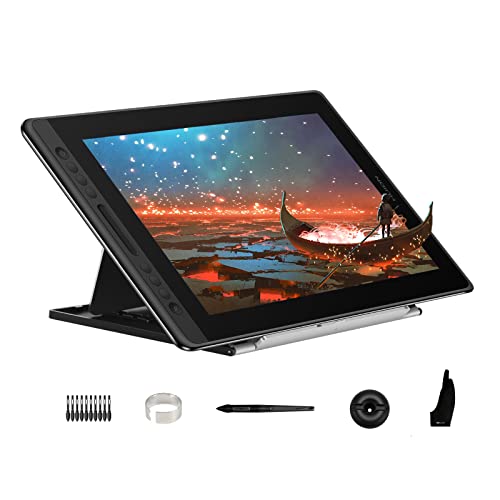
The Huion Kamvas Pro 16 offers the largest screen in this roundup, for artists who want a roomy canvas without professional display pricing. The 15.6-inch screen gives you space for a large canvas with panels, layers, and reference images all visible at once, which suits detailed painting, comics, and photo retouching.
The display uses anti-glare glass with full lamination, so reflections stay low and the pen tip stays close to the line on screen. The battery-free pen offers 8,192 levels of pressure sensitivity with tilt support, and six shortcut keys cover common commands. An adjustable stand is included for comfortable drawing angles. At this size, the display works best as a semi-permanent desk setup rather than a portable device. It connects to Windows, Mac, and Linux computers. Artists who find smaller screens cramped will notice the difference: long sessions feel easier without constant zooming and panning.
Specs
- Display: 15.6-inch full-laminated anti-glare panel, 1920 x 1080 resolution
- Pen: battery-free stylus, 8,192 pressure levels, tilt support
- Controls: six shortcut keys on the side of the display
- Stand: adjustable stand included in the box
- Compatibility: Windows, Mac, and Linux
Budget Pen Displays Compared
Choosing between these five displays comes down to size, pen, and controls. The Huion Kamvas 13 (Gen 3) leads on pen technology and controls, with a 16,384-level pen, dual dials, and five keys in a portable 13.3-inch body. The XPPen Artist 12 3rd Gen matches that pen performance in the smallest package. The XP-Pen Artist 12 2nd Gen is the simplest and most affordable way to start drawing on a screen, with a proven 8,192-level pen and eight shortcut keys. The XP-Pen Artist 13.3 Pro steps up to a larger screen with a dial and an included stand. The Huion Kamvas Pro 16 gives you the biggest canvas of the group.
A student carrying a display to class will value the lighter 11.9-inch models, while an illustrator at a desk all day will value the larger screens and included stands. Also consider your future needs: a display with 16,384 pressure levels and dual dials leaves more room to grow, while a simpler display is fine if you are still learning the basics. Pair it with a comfortable chair, good lighting, and a stand angle that keeps your wrist neutral.
Frequently Asked Questions
Do budget pen displays need a computer to work?
Yes. Every pen display here is a monitor with a pen sensor, not a standalone tablet, so it must connect to a computer. You connect it with a USB-C cable or a three-in-one cable, install the driver from the maker, and draw in software on your computer. Check your ports and driver support before you buy.
What screen size is best for a beginner digital artist?
An 11.9-inch display is a good starting point for beginners because it is portable, affordable, and large enough for sketching and learning. A 13.3-inch display fits if you want room for tool panels, and a 15.6-inch display suits detailed pieces and long sessions. If you are unsure, a 13.3-inch display is a safe middle ground.
Are 8,192 pressure levels enough for digital art?
Yes, 8,192 levels are enough for most digital art, including sketching, inking, coloring, and painting. That already gives smooth transitions from light to firm strokes. Pens with 16,384 levels add finer steps at the lightest end of the range, but they are a refinement rather than a requirement.
Can I use a budget pen display for photo editing and animation?
Yes, a budget pen display works well for photo editing and animation. The pen gives you fine control for masking, retouching, and frame-by-frame drawing. Make sure the display you choose is compatible with your editing or animation software.
Conclusion
The best budget pen display for most digital artists in 2026 is the Huion Kamvas 13 (Gen 3), thanks to its 16,384-level pen, dual dials, and portable 13.3-inch screen. If you want the most portable option with the latest pen, the XPPen Artist 12 3rd Gen is the compact pick, while the XP-Pen Artist 12 2nd Gen is the most affordable way to start drawing on a screen. Artists who want more room should consider the XP-Pen Artist 13.3 Pro or the Huion Kamvas Pro 16. Whichever model you choose, check the connection and driver support for your computer and set up a comfortable drawing angle.