We independently review everything we recommend. When you buy through our links, we may earn a commission. As an Amazon Associate we earn from qualifying purchases.
Best Budget USB to HDMI Adapters for Extra Monitors
Compare the best budget USB to HDMI adapters, from the Plugable UGA-2KHDMI to the Wavlink dual HDMI model, with DisplayLink and driver guidance inside.
Compare the best budget USB to HDMI adapters, from the Plugable UGA-2KHDMI to the Wavlink dual HDMI model, with DisplayLink and driver guidance inside.
⭐ Key Takeaways
Quick answer: Our top pick is Plugable USB 3.0 to HDMI Video Graphics Adapter (UGA-2KHDMI), with Plugable USB 3.0 to DVI, VGA and HDMI Video Graphics Adapter (UGA-3000) as a strong alternative.
Many laptops run out of display outputs long before they run out of power to drive another screen. A USB to HDMI adapter adds that extra monitor through a spare USB port, which is how an older laptop or a base-model Mac gains a second or third display without a full docking station. Most of the adapters below use DisplayLink technology, which compresses video over USB and needs a driver, while others pass through the USB-C port’s native video signal. All five are proven, widely supported models.
As an Amazon Associate, we earn from qualifying purchases.
Quick answer
The Plugable UGA-2KHDMI is the best budget USB to HDMI adapter for most people, driving one screen up to 2560×1440 over USB 3.0 with mature DisplayLink drivers. The Plugable UGA-3000 adds DVI and VGA flexibility for older monitors. The UGA-HDMI-S suits USB-C laptops, the j5create JUA195 is the simple Windows pick, and the Wavlink adapter feeds two HDMI monitors from one port.
Plugable USB 3.0 to HDMI Video Graphics Adapter (UGA-2KHDMI)
Top Pick
Plugable USB 3.0 to HDMI Video Graphics Adapter (UGA-2KHDMI)
The UGA-2KHDMI is the benchmark single-display adapter in this class. Built on the DisplayLink DL-3500 chipset, it adds one HDMI monitor at resolutions up to 2560×1440 through a USB 3.0 port, which covers the 1080p and 1440p screens most home offices actually use. Because DisplayLink renders the display over USB, it works even on machines whose own graphics support no extra monitors.
Plugable’s driver support is the real selling point. The company maintains clear download pages and setup guides for Windows, macOS and ChromeOS, and the adapter is a common sight in corporate fleets, which means operating system updates rarely leave it stranded. Multiple adapters can run on one computer for a third or fourth screen, within the host’s performance limits.
The limits are the technology’s limits: DisplayLink adds a small amount of compression, so fast gaming and protected video playback are not its strengths, and a driver install is required before first use. For documents, browsing, coding and video calls on an added screen, it is the dependable default.
Plugable USB 3.0 to DVI, VGA and HDMI Video Graphics Adapter (UGA-3000)
Runner-Up
Plugable USB 3.0 to DVI, VGA and HDMI Video Graphics Adapter (UGA-3000)
The UGA-3000 trades a little resolution for a lot of flexibility. Its output side accepts HDMI, DVI or VGA connections through the included adapters, so the same unit connects a modern HDMI monitor today and an older DVI or VGA screen tomorrow. That makes it the natural pick for anyone reviving a spare monitor from storage.
It uses the DisplayLink DL-3100 chipset and supports resolutions up to 2048×1152, which covers 1080p panels comfortably. Like its sibling, it runs over USB 3.0, installs with Plugable’s drivers and supports Windows and macOS 10.14 and later, so a mixed household of machines can share it.
The ceiling is lower than the UGA-2KHDMI’s, so a 1440p monitor would run below its native sharpness, and the dongle-style adapters add a little bulk at the back of the unit. Where the screen collection is mixed or older, though, nothing else in this roundup connects to as many display types for the money. Keep it in the cable drawer and it ends most monitor compatibility arguments before they start.
Plugable USB-C and USB 3.0 to HDMI Adapter (UGA-HDMI-S)
Plugable USB-C and USB 3.0 to HDMI Adapter (UGA-HDMI-S)
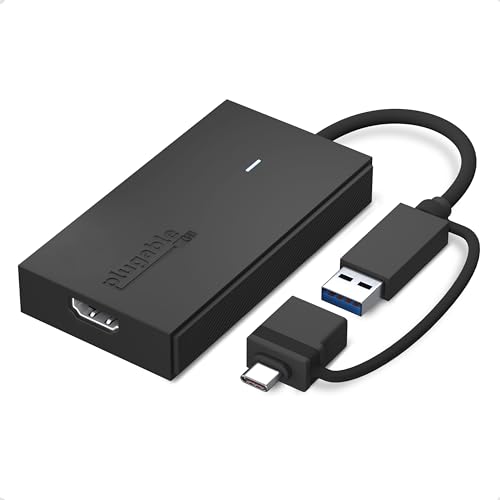
The UGA-HDMI-S is the flexible-connector option: it works from either a USB-C port or a USB 3.0 Type-A port, adding one HDMI display up to 1440p at 60Hz depending on the connection used. That dual personality suits households and offices where a newer USB-C laptop and an older USB-A machine share one spare monitor.
On the software side it follows the DisplayLink route, so a driver install unlocks the display on systems that lack native video output on their USB ports, including base Apple silicon Macs that officially support only one external screen. Plugable documents those Mac setups thoroughly, which removes most of the guesswork for first-time users.
Shoppers should confirm which mode their port will use, since resolution and refresh depend on the host connection, and the same DisplayLink caveats about gaming and protected content apply. The adapter itself is small enough to stay plugged into the monitor cable, so the second screen becomes a one-plug habit rather than a setup project each morning. As a single adapter that follows a user from an old laptop to a new one, it is the most future-proof budget choice here.
The JUA195 keeps things simple for Windows users. This compact adapter adds an HDMI display at up to 1080p through a USB port, aimed squarely at the classic second-monitor-for-spreadsheets job. The housing is small enough to live in a laptop bag, and the short integrated cable reduces strain on the port.
Setup on Windows is the familiar driver routine, and j5create publishes its drivers and manuals openly, including the multi-monitor adapter family this model belongs to. It supports extended and mirrored modes, so it doubles as a presentation adapter for driving a projector or TV from a laptop with no free video port.
The 1080p ceiling and Windows focus define its lane: Mac users and 1440p monitor owners should pick one of the Plugable or Wavlink models instead. Within that lane it is a tidy, inexpensive tool, the kind of adapter a family buys once and passes between laptops for years. It also earns a place in meeting rooms, where a guest laptop with no free video port can still reach the wall screen in a couple of minutes.
Wavlink USB 3.0 or USB-C to Dual HDMI Adapter (UG6902H)
Wavlink USB 3.0 or USB-C to Dual HDMI Adapter (UG6902H)
The Wavlink UG6902H is the multi-monitor pick: one USB 3.0 or USB-C connection in, two HDMI displays out, each at up to 4K at 60Hz with the DisplayLink driver installed. That makes it the cheapest route in this roundup to a triple-screen desk when the laptop’s own display counts as the first.
It is aimed at exactly the users DisplayLink serves best: owners of base-model Apple silicon Macs limited to one external monitor, and Windows users whose laptops expose a single video output. Two external screens running documents, mail and calls leave the laptop display free for notes or chat, which is the classic productivity layout this adapter enables.
Two cautions apply. The driver is required, not optional, and the adapter’s performance depends on the host’s processor since DisplayLink renders in software. Fast gaming across both screens is out of scope. Buyers should also plan the cable runs, since two HDMI leads now leave from one small box. For office workloads, though, it replaces a docking station at a fraction of the cost and desk space.
How to choose
First, identify the port. USB-C machines may support native video, while USB-A machines always need a DisplayLink adapter and its driver. Check the monitor’s resolution: 1080p screens are served by every model here, while 1440p and 4K need the higher chipsets. Count the displays; one adapter per screen works, but a dual-output model is tidier for two. Confirm operating system support and driver availability for the exact version in use, especially on Macs. Finally, remember what DisplayLink cannot do well: competitive gaming and copy-protected streaming belong on a native video port.
Who should skip
Skip these adapters if the laptop already has a free HDMI or DisplayPort output; a plain cable is cheaper and better. Gamers should skip DisplayLink entirely, since the compression and driver layer add latency and artifacts in fast scenes. Anyone who mainly watches protected streaming services on the second screen will hit playback blocks. And users who cannot install drivers, such as on a locked-down work laptop, need an adapter that uses the port’s native video signal instead, or a proper docking station approved by their IT department.
Frequently Asked Questions
Why does a USB to HDMI adapter need a driver?
DisplayLink adapters do not pass the computer’s own video signal through; they compress a rendered desktop and send it over USB data, which requires driver software on the host. Once installed, the extra screen behaves like any other display. Adapters that use a USB-C port’s native video mode need no driver but only work on ports wired for video.
Can these adapters add a monitor to a base-model MacBook?
Yes, that is one of their main uses. Base Apple silicon Macs officially support a limited number of external displays, and a DisplayLink adapter with its driver installed adds screens beyond that limit for office work. The trade-off is that the added displays are not suited to gaming or protected video playback.
How many extra monitors can one laptop run this way?
Most laptops can run two DisplayLink adapters comfortably, and stronger machines handle more. Each added screen consumes processor time, so older or entry-level computers may feel the load with several high-resolution displays. A dual-output adapter like the Wavlink keeps the port count down when two screens are the goal.
Is USB 3.0 fast enough for a second monitor?
For office work, yes. USB 3.0 carries enough bandwidth for a compressed 1080p or 1440p desktop with smooth scrolling, typing and video calls. Full-screen video is generally fine at these resolutions, while fast-paced games are the weak point. A USB 2.0 port works with some models but limits resolution and smoothness.
Final verdict
The Plugable UGA-2KHDMI is the safe, single-screen default with the strongest support behind it. The UGA-3000 covers older monitors, the UGA-HDMI-S bridges USB-C and USB-A machines, and the j5create JUA195 keeps Windows setups simple. The Wavlink dual HDMI model is the productivity jump, feeding two screens from one port. Match the adapter to the port, the resolution and the driver rules, and a spare monitor becomes useful again.
E
Emubox Editorial Team
We compare specs, materials and verified owner reviews before a product earns a spot. Rankings are never paid.
Affiliate disclosure. As an Amazon Associate we earn from qualifying purchases at no extra cost to you. Prices accurate as of the date shown.
Best 2mm 70 cm portable antennas compared: telescopic radio antennas near 70 cm, with connectors, bands and collapsed sizes explained before you buy today.
Find the best thermostat setting for winter and summer, with energy-saving setbacks, humidity tips, and smart schedules for a comfortable home year-round.
The best affordable business computer monitors balance sharp text, eye comfort and lasting value. Compare four reliable office displays built for long workdays.
Looking for the best inexpensive HD TVs non smart? Compare five genuinely non-smart HD televisions with tuners, HDMI inputs and simple setup for any small room.


 Plugable USB 3.0 to HDMI Video Graphics Adapter (UGA-2KHDMI)
 Plugable USB-C and USB 3.0 to HDMI Adapter (UGA-HDMI-S)
 j5create USB to HDMI Display Adapter (JUA195)
 Wavlink USB 3.0 or USB-C to Dual HDMI Adapter (UG6902H)