Our Short List of 3
All 3 Picks at a Glance
| Product | Specs | Action |
|---|---|---|
 1. Logitech C920s HD Pro Webcam | Check price on Amazon | |
 2. Logitech Brio 101 Full HD 1080p Webcam | Check price on Amazon | |
 3. Anker PowerConf C200 2K Webcam | Check price on Amazon |
Key takeaways
- The best webcams for watching shark livestreams, aquarium cams, and virtual dives in sharp detail, with clear audio and easy plug-and-play setup.
The best shark webcams are the Logitech C920s HD Pro, the Logitech Brio 101, and the Anker PowerConf C200, because each one delivers a sharp picture for watching live shark cams, aquarium streams, and virtual dives from your desk. A good webcam matters more than most people expect: shark livestreams are often dark, fast-moving, and full of fine detail, so resolution, low-light handling, and a stable frame rate decide whether you see a reef shark glide past or a blurry shadow. All three picks below are plug-and-play USB webcams that work with the video apps and browsers used to watch wildlife streams.
What “Shark Webcams” Means in This Guide
A quick clarification is worth making before the picks. A standard USB webcam cannot go underwater, and none of the webcams in this guide is a dive camera. When people search for the best shark webcams, they usually mean a webcam for watching sharks, or a webcam for sharing shark footage with others. This guide covers the first meaning, which is also the one that fits a normal desk setup.
Aquariums, marine research groups, and ocean conservation organizations run live shark cams that stream around the clock. Viewers watch reef sharks, hammerheads, and whale sharks from home, join virtual dive sessions, and take part in live question-and-answer sessions with marine educators. A webcam on your side of the screen lets you join those sessions on camera, talk with a guide, and share the experience with a classroom or a family call.
A webcam also works if you run a small stream of your own, for example a camera pointed at a home aquarium while you talk about the fish in it. The camera faces you and your room, not the water, and the same qualities apply: a clear image and a microphone that picks up your voice without drowning it in room noise.
How to Choose a Webcam for Watching Shark Cams
Resolution comes first. Shark cams show animals at a distance, often against a blue or green background where detail is easy to lose. A Full HD 1080p picture keeps fins, gill slits, and markings readable, while a 2K sensor adds extra sharpness for larger monitors. Anything below 1080p turns a distant shark into a smudge.
Frame rate keeps motion smooth. Sharks move in long, steady glides, and a camera that captures 30 frames per second renders that motion cleanly. Higher frame rates help when you are the one on camera and moving around, but a stable 30 frames per second is the baseline to look for.
Low-light correction matters more than it sounds. Many shark cams stream from tanks and ocean feeds where the lighting is dim by design. Your webcam still has to handle mixed light: a window on one side, a lamp on the other, and a glowing monitor in front of you. Automatic light correction evens out those contrasts so your face stays visible.
Field of view decides how much of your room appears. A narrower view keeps the focus on you, which suits one-person calls with a marine educator. A wider view fits two people watching together, or a classroom where several students sit behind one camera. Some webcams switch between viewing angles in software.
A built-in microphone is a practical necessity. Joining a live question-and-answer session means speaking, and a webcam microphone keeps the setup to a single cable. Dual microphones with noise cancellation help in rooms with fans, keyboards, or street noise. A dedicated microphone is a worthwhile upgrade later, but the built-in microphone is enough to start.
A privacy shutter is a small feature with real value. It physically covers the lens when the camera is not in use, so there is no doubt about whether the camera is live. Every pick in this guide has one. Compatibility should be boring: a webcam should plug into a USB port and work with the video apps you already use, without drivers or extra software, on Windows, macOS, and ChromeOS.
Comparison Table
| Webcam | Resolution | Frame Rate | Field of View | Microphone | Privacy Cover | Connection |
|---|---|---|---|---|---|---|
| Logitech C920s HD Pro | Full HD 1080p | 30fps | Standard widescreen | Dual stereo mics | Flip-up privacy shutter | USB-A |
| Logitech Brio 101 | Full HD 1080p | 30fps | 60 degrees | Built-in mic | Integrated slide cover | USB-A |
| Anker PowerConf C200 | 2K | 30fps at 1080p | 65, 78, or 95 degrees | Dual mics with AI noise cancellation | Built-in privacy cover | USB |
1. Logitech C920s HD Pro Webcam
Autofocus is the feature that separates the C920s from cheaper fixed-focus cameras. When you lean in to point at something on screen, or lean back to let a second person into the frame, the camera refocuses without any action from you. That matters during a live question-and-answer session, where you are moving and reacting to what is happening on the stream. A fixed-focus camera goes soft the moment you leave its sweet spot.
HD light correction is the second feature that earns its place here. The listing describes automatic correction for harsh or dim lighting, and that means the camera adjusts when a window brightens one side of your face or when you watch a stream in a darkened room. Shark cams are often watched with the lights low, the better to see the tank on screen, and a camera without light correction would leave you as a silhouette.
Sound comes from dual stereo microphones built into the body of the camera. They pick up a voice from a normal desk distance. For asking a question during a virtual dive, or talking with family while a shark cam plays in the background, they are enough on their own.
The privacy shutter is a physical flap that flips up over the lens: shutter up means the camera is covered. The camera mounts on a monitor, a laptop lid, or a tripod, and works with common video calling platforms on PC, Mac, and laptop setups.
Who it suits best: anyone who wants a dependable all-round webcam for shark cams, live sessions, and everyday video calls, without learning any software first.
2. Logitech Brio 101 Full HD 1080p Webcam
RightLight is Logitech’s name for the automatic light balancing in this camera. According to the listing, it boosts brightness to reduce shadows. The practical result is similar to the C920s: your face stays lit and readable when the room lighting is uneven, including the common case of watching a bright stream in a dim room.
The Brio 101 records at 1080p at 30 frames per second, with 720p at 30 frames per second as a lower option. Its field of view is 60 degrees, which is narrower than the widest setting on the Anker pick below. A 60-degree view frames one person neatly and keeps the background out of the shot, which suits solo viewing and one-to-one calls with a guide or educator. If two people regularly watch together, the wider options elsewhere in this guide fit better.
A built-in microphone handles voice on calls, and the integrated slide cover provides privacy with a quick sideways movement. The camera connects over USB-A and works with Microsoft Teams, Zoom, and Google Meet on Windows, macOS, and ChromeOS.
One detail worth noting is the naming. The listing title calls this camera the Brio 101, while the model name in the listing details reads BRIO 100. The ASIN in this guide matches the listing that carries both names, so check the listing title and model number when buying.
Who it suits best: laptop users, students, and anyone with a small desk who wants a neat, compact webcam for shark cams and video calls, with a narrow frame that keeps the focus on one person.
3. Anker PowerConf C200 2K Webcam
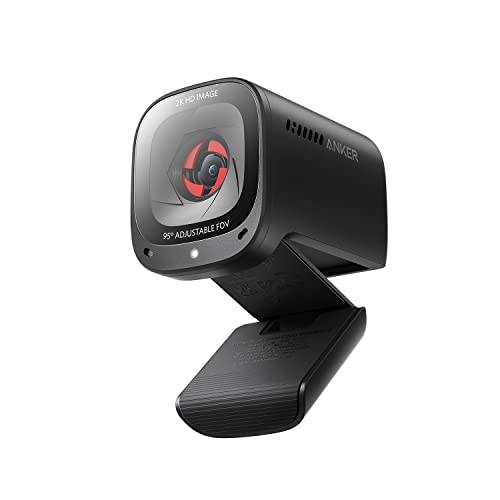
Field of view is the setting that most changes how a shark-watching session feels. At 65 degrees the camera frames one person closely, which is right for a solo call. At 78 degrees there is room for a second person at the edge of the desk. At 95 degrees the camera takes in a small group, a classroom table, or a living room where the family watches together. Being able to change that setting without moving the camera is a flexibility neither Logitech pick has.
The 2K sensor gives the image extra detail on larger monitors, where a 1080p picture can start to look soft. That matters when the shark cam is the main event and your own camera feed sits beside it in a small window. Low-light correction is built in, and the listing describes it as a feature for dim settings, which matches the low-light rooms where shark cams are often watched.
Audio is handled by dual stereo microphones with AI noise cancellation. The listing describes the microphones as a way to keep voices clear in noisy environments, so the fan, the keyboard, and the television in the next room intrude less on a call. A built-in privacy cover slides over the lens when the camera is not in use.
The camera connects over USB and works with Windows 7 or later and macOS 10.11 or later. Its model number is A3369, and it ships with a USB-C cable in the box according to the listing. The AnkerWork software is needed to change the field of view, so this is the one pick that asks for a small amount of setup in exchange for its flexibility.
Who it suits best: households and classrooms where more than one person watches together, and anyone with a larger monitor who wants the sharpest picture and the widest choice of framing.
Where to Watch Sharks Live
A good webcam is only half of the setup. The other half is knowing where the live shark cams are, and most of them are free to watch.
Large public aquariums run the best-known shark cams. Their streams typically show a main tank with reef sharks, rays, and schooling fish, and many aquariums keep the camera running around the clock. Some add a second angle, such as a shark lagoon or an open-ocean exhibit, and a few run scheduled feeding sessions with live commentary. Checking an aquarium’s own website is the most reliable way to find its current streams, since cameras move between exhibits and schedules change.
Marine research and conservation organizations also stream from the ocean itself. These feeds are less predictable than an aquarium tank, which is part of their appeal: a shark may pass once an hour or not at all. Some include a chat alongside the video, where volunteers and staff answer questions as the feed runs.
Virtual dive and classroom programs are the third source, and they are where your webcam earns its keep. These are scheduled sessions, often run by an aquarium educator or a marine biologist, in which the audience joins by video. A webcam lets you ask a question face to face, show a drawing or a school project to the presenter, and be part of the session rather than a silent viewer. A camera with a wide field of view is the practical choice when several students share one screen.
Setting Up Your Shark-Watching Spot
The room matters as much as the camera. A few simple adjustments make a visible difference to how you appear on a call and how well you see the stream.
Place the webcam at eye level, or as close to it as the monitor allows. A camera that looks up at you from below the screen is unflattering and makes it harder for the other people on a call to read your expression. If the monitor sits low, a small stack of books under it brings the camera up to the right height.
Light should fall on your face, not behind you. A window behind you turns you into a silhouette, no matter how good the camera’s light correction is. Turning to face the window, or switching on a lamp in front of you, solves the problem more effectively than any camera setting.
Common Mistakes When Buying a Webcam for Shark Cams
The most common mistake is buying an underwater camera by accident. Search results for shark cameras mix together action cameras, dive housings, and USB webcams, and they are very different tools. An action camera in a waterproof housing is for filming underwater yourself. A USB webcam is for watching a stream and joining a call from your desk. This guide covers the second kind, and if you want to film sharks yourself, that is a different purchase.
The second mistake is chasing the highest resolution number on the box. A 4K webcam sounds better than a 1080p one, but the stream you are watching is usually delivered at 1080p or lower, and your own video feed in a call is typically shown in a small window. Resolution above 1080p helps on a large monitor, which is why the 2K sensor on the PowerConf C200 is a genuine advantage, but it is not the only thing that matters. Frame rate, light handling, and the microphone matter at least as much.
The third mistake is forgetting the microphone. A camera with a sharp picture and a weak microphone produces calls where everyone can see you and nobody can hear you. All three picks in this guide have a usable built-in microphone, but if you already own a headset or a separate microphone, use it for scheduled sessions and keep the webcam microphone as a backup.
The fourth mistake is mounting the camera and never adjusting it. A webcam clipped to the top of a monitor and left there will drift, tilt, or end up pointing at the ceiling after the monitor is moved. A quick look at the preview before each session keeps the framing right.
FAQ
Can a normal webcam film sharks underwater?
No. A standard USB webcam is not waterproof and cannot be used underwater. To watch sharks, you view a livestream from an aquarium or a research feed on your screen, and your webcam lets you join the live session on camera. Underwater filming needs an action camera in a waterproof housing, which is a different kind of product.
What resolution should a webcam have for watching shark livestreams?
Full HD 1080p is the baseline to look for, and it is what the Logitech C920s HD Pro and the Logitech Brio 101 provide. A 2K sensor, such as the one in the Anker PowerConf C200, adds extra sharpness on larger monitors. Below 1080p, distant sharks and fine detail in the water become hard to make out.
Do I need a webcam at all to watch a shark cam?
No, watching a stream only needs a screen and an internet connection. A webcam is needed when you want to join a live session on camera, ask a question during a virtual dive, or appear in a classroom call. If you only ever watch silently, any screen will do.
Which webcam is best for two or more people watching together?
The Anker PowerConf C200, because its field of view adjusts to 65, 78, or 95 degrees. The 95-degree setting fits a small group around one desk, while the narrower settings suit a single viewer. The Logitech Brio 101, with its 60-degree view, is framed for one person and is the better choice for solo watching.
Does the webcam affect the quality of the shark stream itself?
No. The quality of the stream depends on the camera at the aquarium or in the ocean and on your internet connection. Your webcam only affects how you appear to other people when you join a session on camera. A slow connection will make any stream stutter regardless of which webcam you own.
Disclosure: As an Amazon Associate, we earn from qualifying purchases.